February 10, 2026
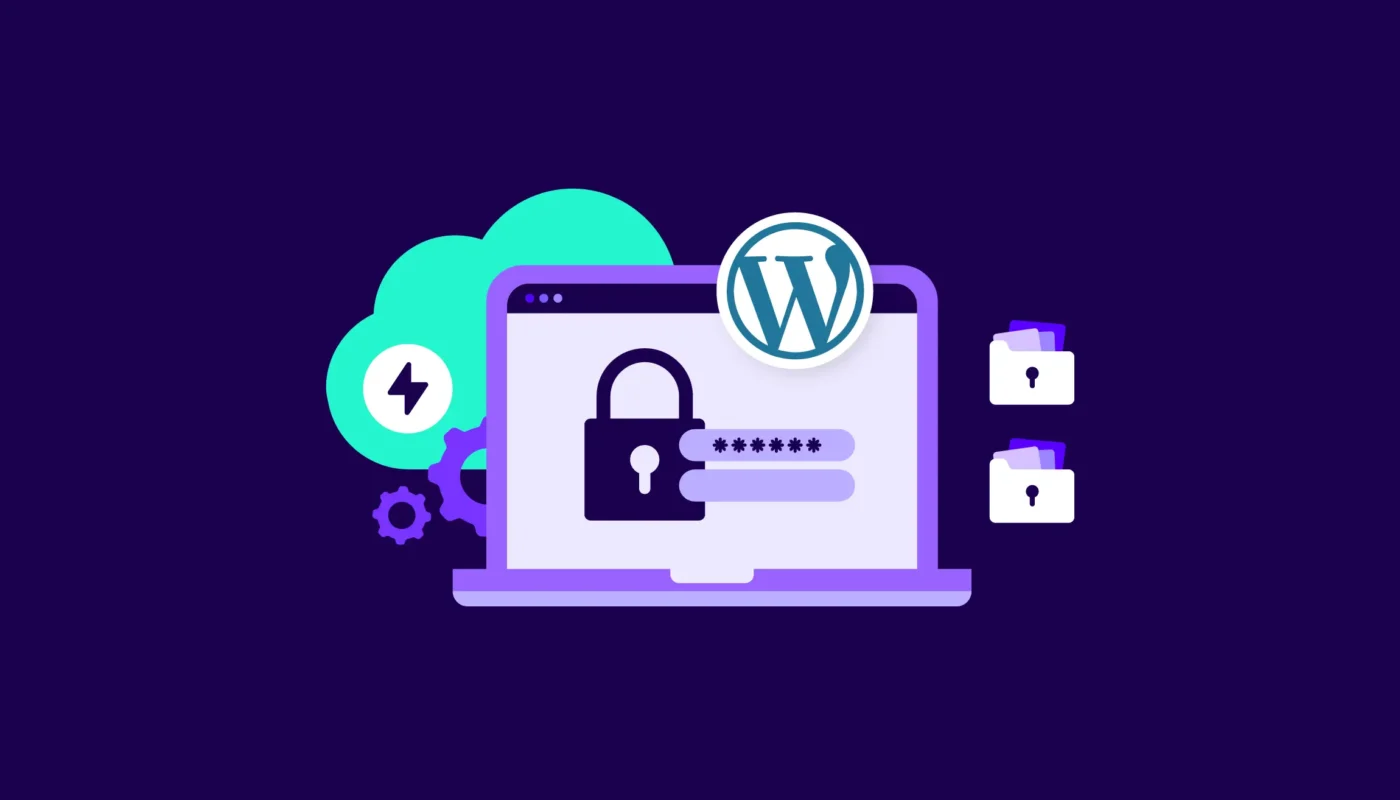
Illustration of WordPress website security with padlock, password field, and secure system icons

How to Secure Your WordPress Site from Hackers — Essential Security Checklist

If you run a WordPress website, you already know how much effort goes into creating content, building trust, and improving rankings. But imagine waking up one day to see your site defaced, inaccessible, or filled with spam. It’s a nightmare — and sadly, it happens every day.

The truth is simple:
A secure WordPress site loads faster, ranks higher, and protects your hard work from hackers.

Website security is no longer optional; it’s a core part of running a successful online presence. In this guide, we’ll walk through a complete, beginner-friendly WordPress security checklist you can apply right now — without needing technical skills.

Why Security Matters for Every WordPress Website

Hackers don’t target sites because they’re famous — they target sites because they’re vulnerable.

Here’s why securing your WordPress site matters:

  • Hackers inject malware that hurts SEO and gets your site blocklisted

  • Stolen data leads to serious trust issues

  • Slow or infected sites lose rankings on Google

  • AdSense may reject or disable accounts with unsafe content

  • Cleaning a hacked site is expensive and stressful

A secure WordPress site gives you:

  • Better search performance

  • Higher user trust

  • Improved AdSense approval chances

  • A smooth, professional experience for your visitors

Common WordPress Vulnerabilities

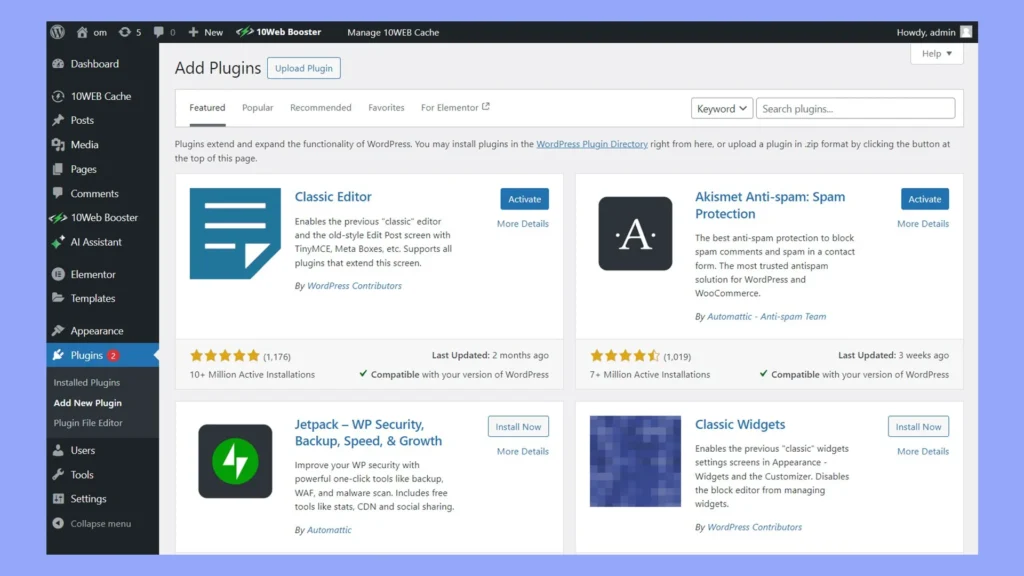
Screenshot of WordPress admin dashboard showing plugin installation interface and popular plugin options

Hackers usually exploit weaknesses that site owners overlook. The most common issues include:

1. Outdated Plugins

Old plugins contain bugs and security holes.

2. Weak Passwords

“admin123” is an open invitation.

3. Outdated Themes

Unsupported themes break easily and are easy targets.

4. No SSL Certificate

An unsecured HTTP site puts login data at risk.

5. Poor Hosting Security

Cheap hosts cut corners — and your website pays the price.

6. No Backups in Place

Without backups, recovery becomes impossible.

7. File Permissions Too Open

Incorrect permissions allow anyone to edit or upload files.

These vulnerabilities are exactly what hackers search for — but the good news is, you can fix all of them.
Step-by-Step WordPress Security Measures

1. Keep WordPress, Themes & Plugins Updated

This is the easiest and most important step.

Updates fix bugs and patch security holes. Set:

  • Automatic minor updates

  • Weekly manual checks for plugins

  • Avoid themes/plugins not updated in 6–12 months

Tip: Delete unused plugins. Even inactive ones are risky.

2. Install an SSL Certificate

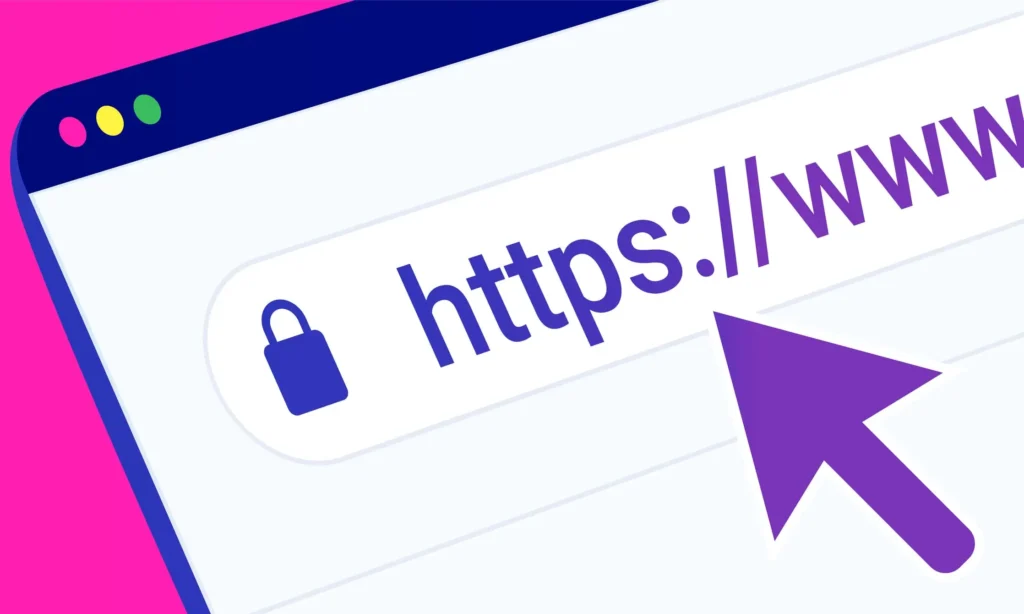
Illustration of a browser address bar with HTTPS and padlock icon indicating SSL security

A secure WordPress site must show HTTPS, not HTTP.

Benefits:

  • Protects login data

  • Required for AdSense

  • Boosts Google rankings

Most hosts provide free Let’s Encrypt SSL.

3. Use Strong Passwords & Two-Factor Authentication

Weak passwords are still the No.1 reason WordPress gets hacked.

Use:

  • Uppercase + lowercase

  • Symbols

  • Numbers

  • 12+ characters

Add 2FA using Google Authenticator or email verification.

4. Limit Login Attempts

Person typing on laptop with red warning overlay and WordPress padlock icon indicating website security threat

Default WordPress allows unlimited login attempts — hackers love this.

Install plugins like:

  • Limit Login Attempts Reloaded

  • Wordfence

It blocks bots after repeated wrong passwords.

5. Secure Your Admin URL

Hackers try brute-force attacks on /wp-admin.

Change it to something unique like:
/my-dashboard
/secure-login-2025

Plugins like WPS Hide Login make this easy.

6. Set Correct File Permissions

Wrong permissions allow attackers to edit files.

Recommended:

  • 755 for folders

  • 644 for files

Never set permissions to 777.

7. Enable Caching & CDN for Better Protection

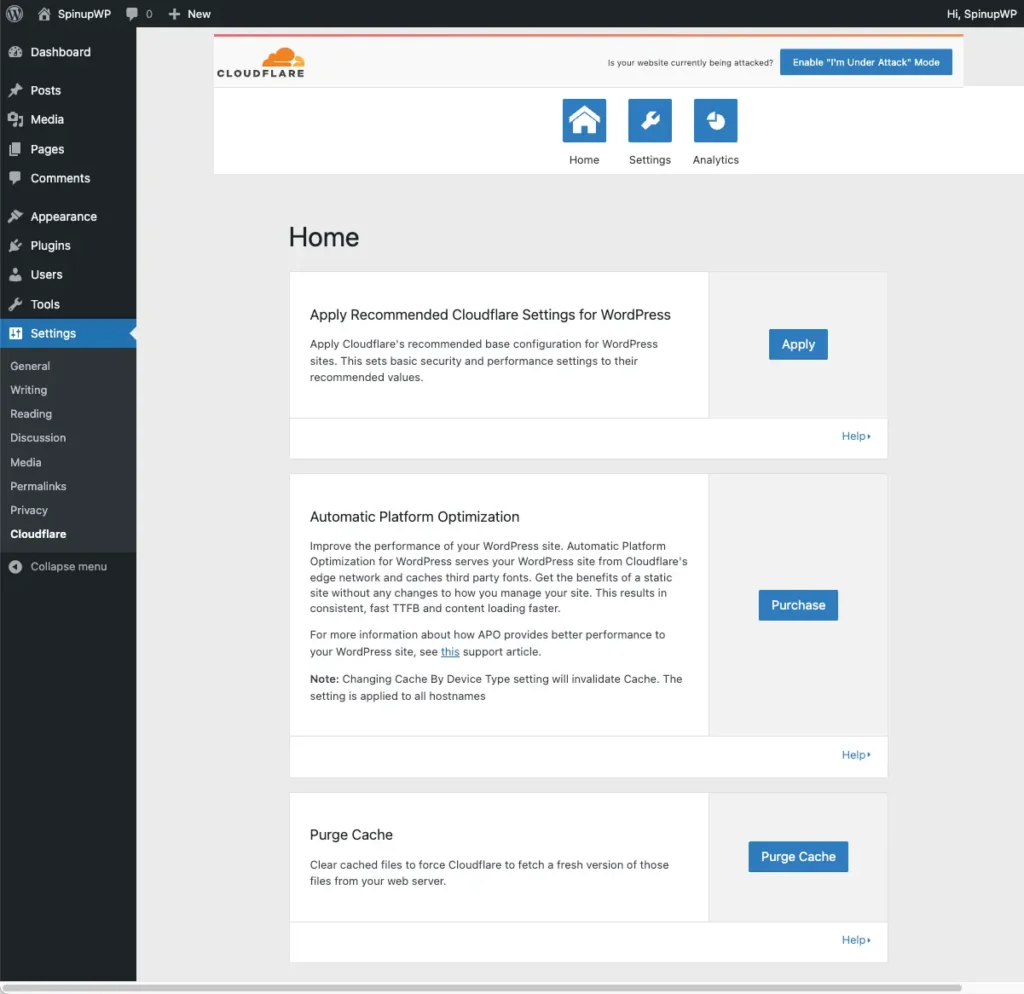
Screenshot of Cloudflare plugin settings in WordPress dashboard showing CDN security and performance options

Caching and CDNs do more than speed:

They:

  • Block suspicious traffic

  • Filter bots

  • Reduce brute-force load

  • Prevent server overload

Cloudflare (free plan) is ideal for beginners.

8. Regular Backups (Your Safety Net)

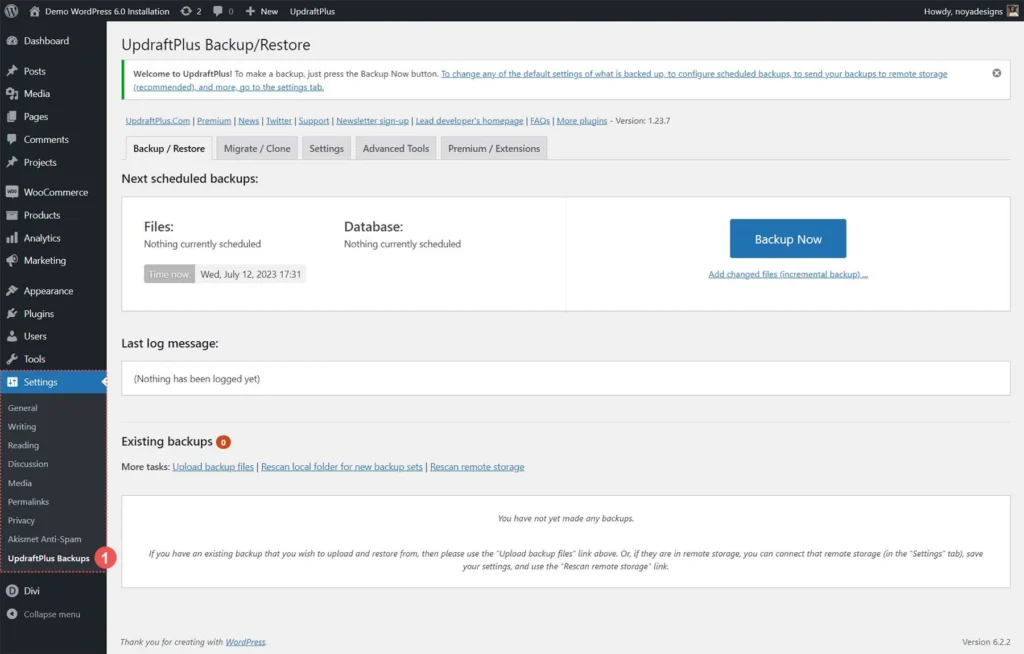
Screenshot of UpdraftPlus plugin in WordPress dashboard showing backup options and status indicators

If something goes wrong, backups save everything.

Use:

  • UpdraftPlus (free + cloud backup)

  • Jetpack Backup

  • BlogVault

Schedule daily or weekly backups.

9. Scan Your Website for Malware

You don’t need coding to find threats.

Use:

  • Wordfence

  • Sucuri Scanner

Weekly scans help keep your site safe and fast.

Recommended WordPress Security Plugins & Tools

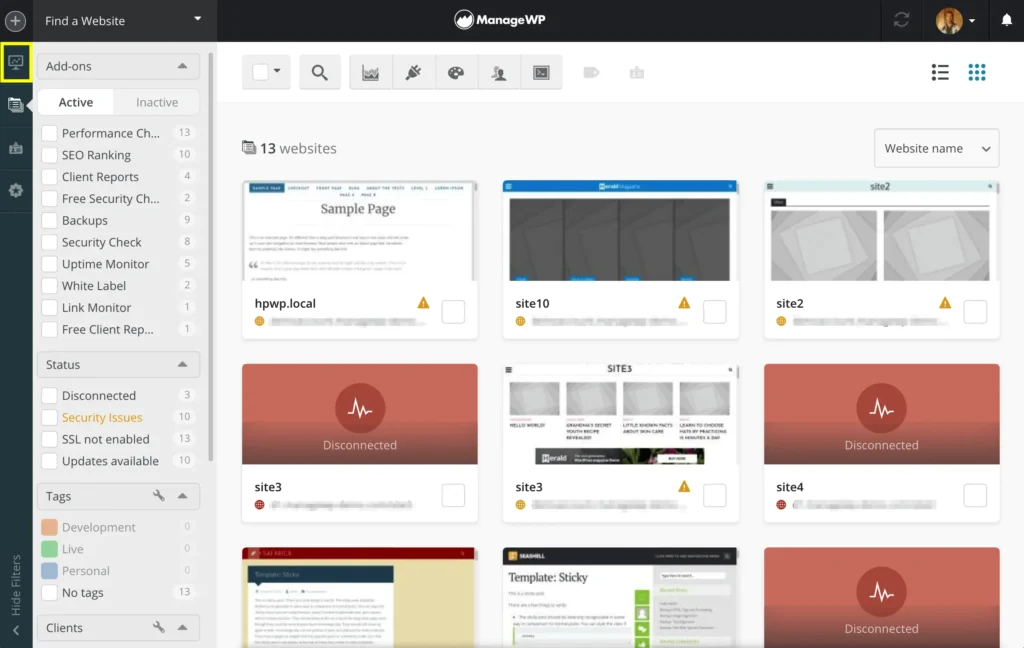
ManageWP dashboard showing plugin status, security issues, and update indicators across multiple WordPress sites

Wordfence

  • Firewall + malware scanner

  • Live traffic monitoring

Sucuri Security

  • Security activity auditing

  • Post-hack cleanup

iThemes Security

  • 2FA + brute-force protection

  • Security logs

Cloudflare CDN

  • Speed + DDoS protection

  • Free SSL

Maintenance & Monitoring: How to Stay Protected Long-Term

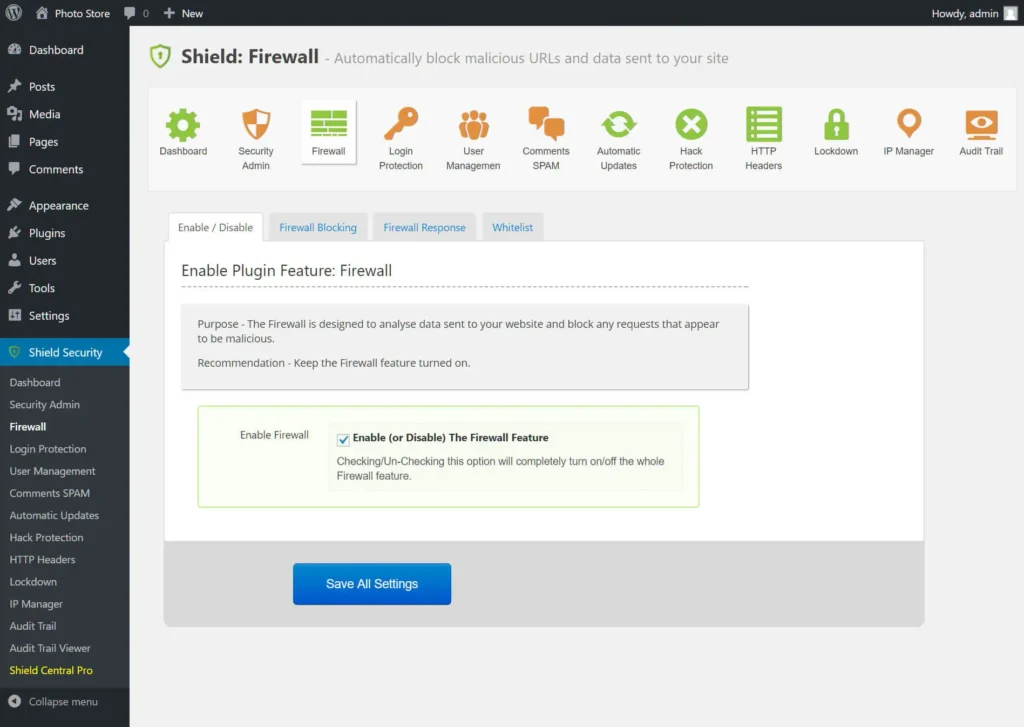
Screenshot of Shield Security plugin in WordPress dashboard showing firewall enablement and configuration options

Security is not a one-time task. It’s an ongoing habit.

Weekly Checklist

  • Update plugins

  • Scan for malware

  • Check for broken pages

  • Backup automatically

Monthly Checklist

  • Review user accounts

  • Remove unused themes/plugins

  • Test page speed

  • Monitor login logs

Quarterly Checklist

  • Change passwords

  • Review hosting server logs

  • Refresh privacy policy

FAQs

1. Can a small blog really get hacked?

Yes — hackers target vulnerabilities, not size.

2. Do security plugins slow down WordPress?

Good plugins like Wordfence or Sucuri optimize performance, not slow it down.

3. Is SSL required for AdSense?

Yes, without HTTPS your chances of approval fall drastically.

4. How often should I back up my site?

Weekly for small sites, daily for active ones.

5. What’s the fastest way to secure WordPress?

Update everything → enable SSL → install a firewall → enable backups.

Conclusion: Your WordPress Security Is in Your Hands

A secure WordPress site isn’t built with one plugin — it’s built with consistent habits. Every update, every backup, every security scan adds a new layer of protection.

When you treat your website like a digital home, you naturally take better care of it. And in return, your site rewards you with:

  • Better SEO

  • Higher user trust

  • Faster performance

  • Smoother AdSense approval

Small steps today prevent big headaches tomorrow.

One thought on “How to Secure Your WordPress Site from Hackers — Essential Security Checklist

Leave a Reply

Your email address will not be published. Required fields are marked *